
MyEFvibe Studio — User guide
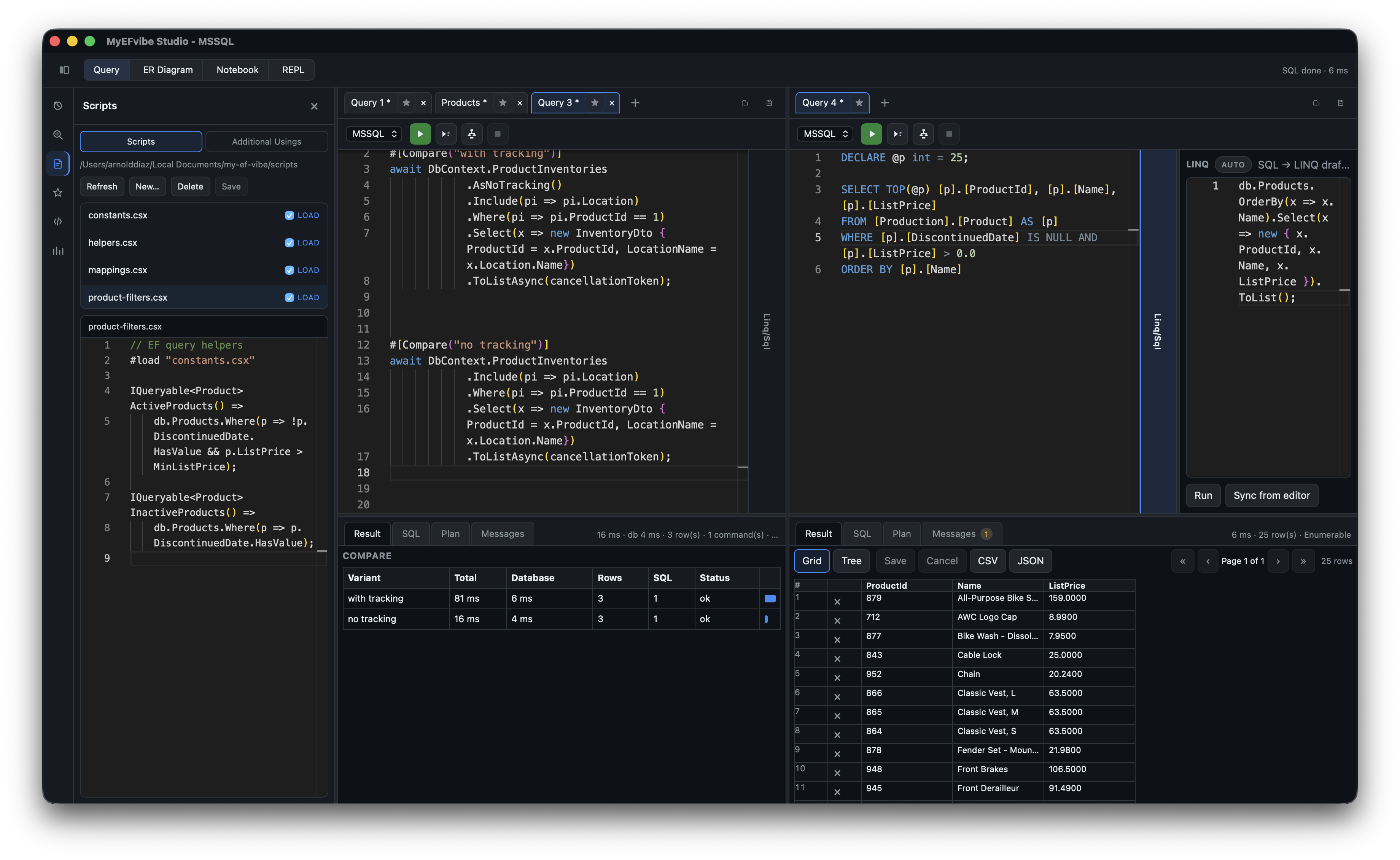
MyEFvibe Studio is a desktop LINQ scratchpad for Entity Framework Core. It runs real queries
against your project's DbContext, shows translated SQL and execution plans, and helps you explore
schema, scan for performance issues, and share queries with your team.
Studio uses the efvibe CLI as its evaluation engine
(efvibe serve daemon). For installation and release builds, see
INSTALL.md in the Studio repository.
Before you start
Prerequisites
- .NET SDK 8+
- efvibe on your PATH (or configured in Settings)
dotnet tool install --global efvibeStudio spawns efvibe serve in the background. If prerequisites are missing, a banner at the top explains what to install.
Supported platforms
| Platform | Support |
|---|---|
| Linux | x86_64 (.deb, .rpm, .AppImage) |
| Windows | x86_64 (.msi, .exe) |
| macOS | Apple Silicon only (arm64) |
First session
- Open or create a workspace — sidebar toolbar: New, Open, or Save for
.efvibe-workspacefiles. - Configure a connection — under Connections, right-click → Edit…. Set a search directory (folder containing your solution) so efvibe can discover
.csprojfiles. - Run a query — Query view, enter
db.Products.Take(5).ToList();, press Run current line (Ctrl+Enter) or Run all (F5) on the query tab toolbar. - Inspect results — Result, SQL, Plan, and Messages tabs in the results panel.
The workspace layout
┌─────────────────────────────────────────────────────────────────┐
│  Connection bar · Main view tabs · Status bar                   │
├──────────┬──────────────────────────────────────────────────────┤
│ Explorer │  Query tabs / Notebook / Diagram / REPL               │
│          │  Per-tab toolbar: Run all · Run line · Run plan · Stop│
│          │  ┌──────┬─────────────────────────┬──────────────┐  │
│          │  │ Tool │  Editor                 │  Live SQL    │  │
│          │  │ rail │                         │  preview     │  │
│          │  └──────┴─────────────────────────┴──────────────┘  │
│          │  Results panel (Result · SQL · Plan · Messages)     │
└──────────┴──────────────────────────────────────────────────────┘
Main views
| View | Purpose |
|---|---|
| Query | Primary LINQ editor with results dock |
| ER Diagram | Mermaid ER diagram for the active connection |
| Notebook | Multi-cell scratchpad (.efvibe-notebook) |
| REPL | Embedded efvibe repl session |
Toggle the explorer from the top bar (or customize the shortcut in Settings).
Connections
Each workspace can define multiple connections. Right-click a connection → Edit….
| Field | efvibe flag | Notes |
|---|---|---|
| Search directory | (discovery) | Folder where efvibe searches for .csproj files |
| EF project | -p | Optional; auto-discovered when empty |
| Startup project | -s | User secrets and appsettings |
| DbContext | -c | Optional; auto-discovered when empty |
| Connection string | --connection-string | Optional override |
| .NET framework | e.g. net10.0 | |
| Show SQL in logs | --dblog | Executed SQL in daemon logs |
Connection actions
- Activate — switch active connection
- Refresh — restart the efvibe daemon
- Rebuild — force
dotnet build - DB Info — provider and server metadata
- ER Diagram — open diagram view
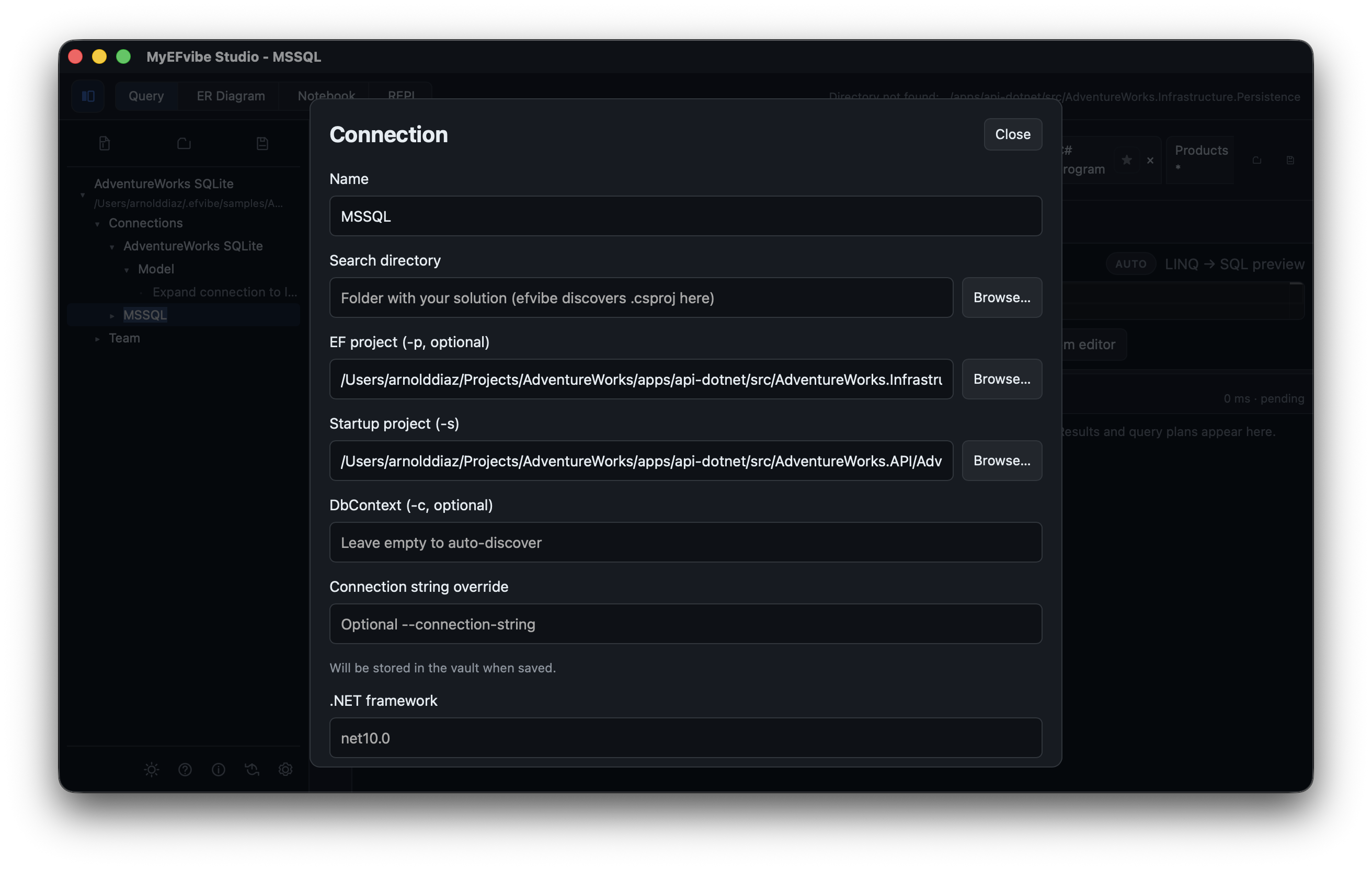
When Store connection strings in the local secret vault is enabled in Settings, secrets stay out of .efvibe-workspace files.
Script session & Scripts panel
Preload C# script helpers into the Roslyn session — shared filters, constants, extension methods, and extra usings.
Connection script settings
| Field | Purpose |
|---|---|
| Script search path | Directory for #load and script files. Defaults to scripts/ beside your workspace file when empty. |
| Script loads | One .csx path per line — auto-loaded when the daemon starts |
| Additional usings | Namespaces imported into every evaluation |
After changing script settings, Refresh the connection to restart the daemon.
Scripts tool (left rail)
Click Scripts in the editor tool rail to list .csx files in the script search path, edit with C# syntax highlighting, save, and create new files. Files marked load are configured in Script loads.
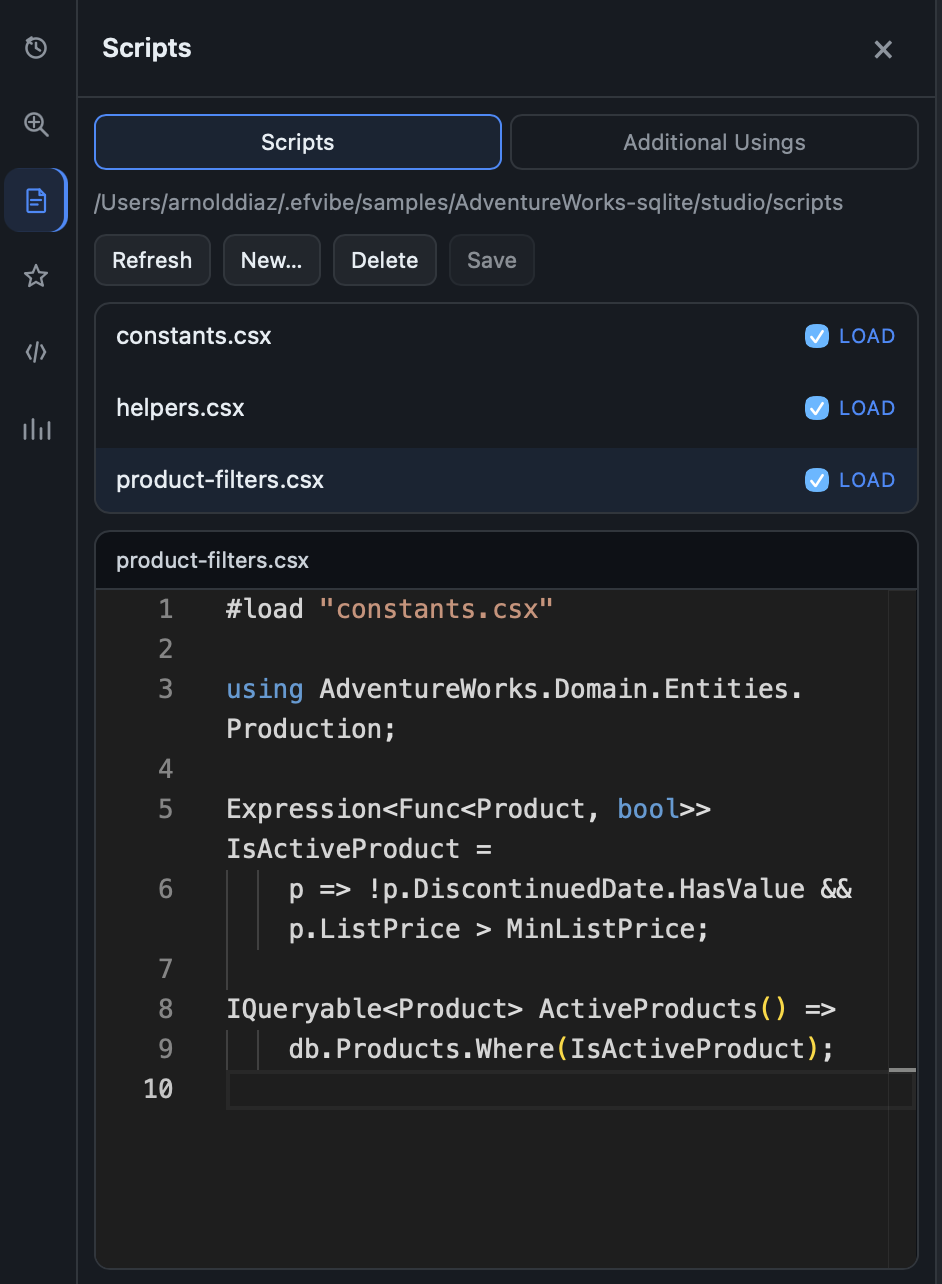
Example helpers
scripts/constants.csx
const int DefaultTake = 25;
const decimal MinListPrice = 0m;
scripts/product-filters.csx
#load "constants.csx"

IQueryable<Product> ActiveProducts() =>
    db.Products.Where(p => !p.DiscontinuedDate.HasValue && p.ListPrice > MinListPrice);
Inline #load at the top of a query tab works for one-off scripts (paths resolve against script search path).
Query view
Running queries
Each query tab has its own toolbar: connection picker, Run all, Run current line, Run plan, and Stop.
| Action | How |
|---|---|
| Run all | Tab toolbar or F5 — full editor (required for #[Compare] / #[Benchmark]) |
| Run current line | Tab toolbar or Ctrl+Enter |
| Run plan | Tab toolbar or Ctrl+Shift+Enter |
| Stop | Tab toolbar or status bar while running |
Last results stay visible while you edit; they clear when you launch Studio (fresh session).
Script attributes (#[Compare], #[Benchmark])
Attribute lines run structured experiments instead of a single evaluation. Shared code before the first attribute is prepended to every block.
#[Compare("With tracking")]
ActiveProducts().OrderBy(p => p.Name).Take(10).ToList();

#[Compare("No tracking")]
ActiveProducts().AsNoTracking().OrderBy(p => p.Name).Take(10).ToList();

#[Benchmark(10)]
ActiveProducts().AsNoTracking().OrderBy(p => p.Name).Take(10).ToList();
Use Run all (F5). Compare and benchmark output appears in the Result tab. Live SQL preview is skipped for attributed scripts.
Three query styles
1. Raw SQL — paste SELECT, WITH, etc. Editor switches to SQL highlighting; executed directly (not EF translation).
SELECT TOP 10 ProductID, Name, ListPrice
FROM Products AS p
WHERE p.ListPrice > 0
ORDER BY p.Name;
2. Fluent LINQ — method syntax on db DbSets:
db.Products
  .Where(p => p.Name.Contains("Helmet"))
  .OrderBy(p => p.Name)
  .Take(10)
  .Select(p => new { p.ProductId, p.Name, p.ListPrice })
  .ToList();
3. Query comprehension — from / where / select syntax:
from product in db.Products
where product.ListPrice > 0
orderby product.Name
select product;
Using project types
Types from assemblies referenced by your EF project (-p) are available in queries. efvibe auto-imports namespaces (except System.* / Microsoft.*). Add namespaces under Additional usings or use fully qualified names. After adding types, Refresh or Rebuild the connection.
Results panel
| Tab | Contents |
|---|---|
| Result | Grid, object tree, compare table, or benchmark stats; CSV/JSON export; optional save-back for tracked entities |
| SQL | Translated and executed SQL |
| Plan | Execution plan (Run Plan) |
| Messages | Warnings and errors |
Live SQL preview
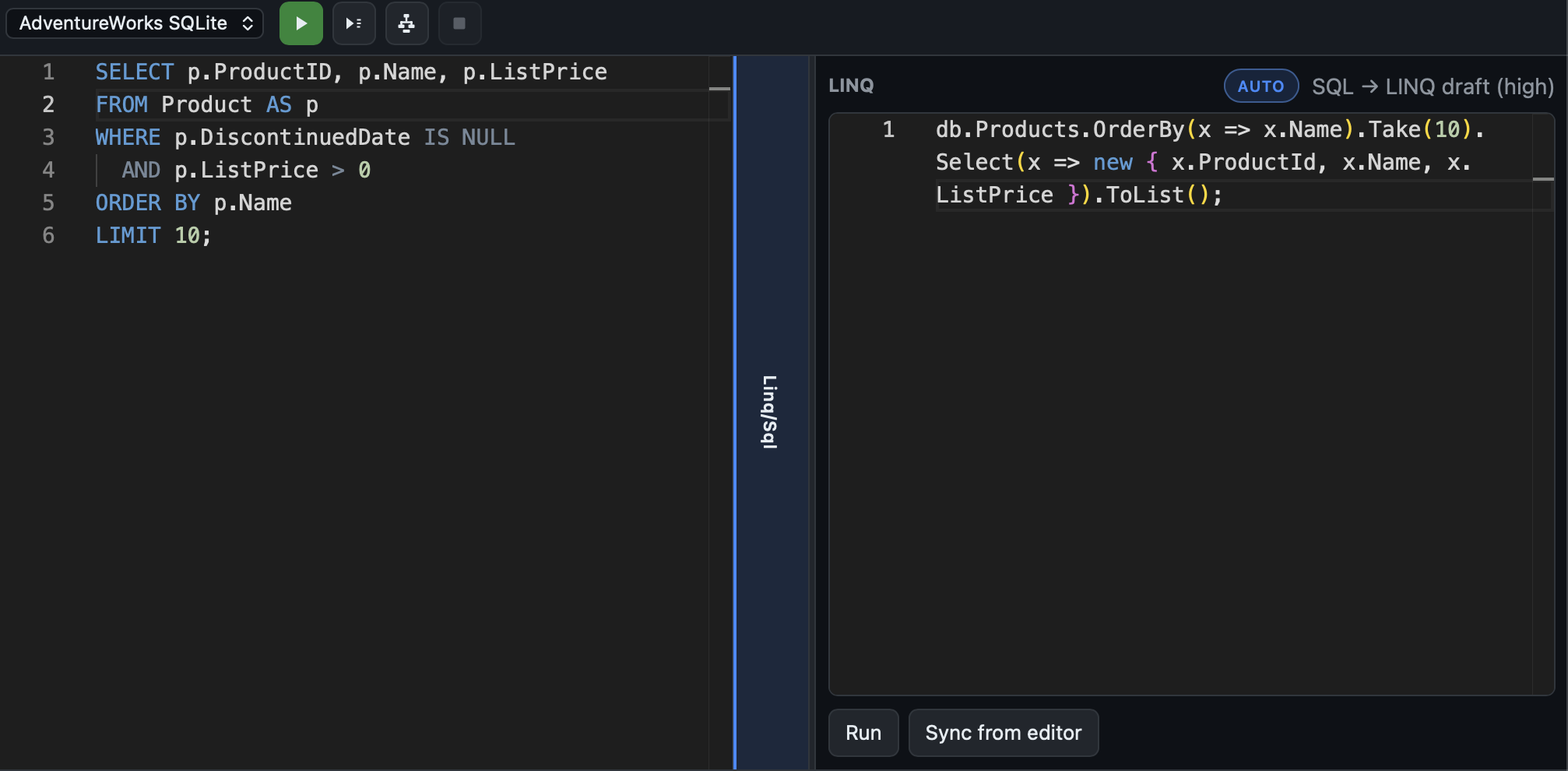
Toggle the Linq/Sql pane on the right for debounced ToQueryString() as you type (plain LINQ; skipped when the script contains #[ attributes), or paste SQL for a draft LINQ expression (sqlToLinq, efvibe 0.6.13+).
Editor tools
Vertical tool rail to the left of the query editor:
| Tool | Purpose |
|---|---|
| Charts | Session timings, benchmark bars, compare baseline |
| History | Recent evaluations (7 days); click to restore expression |
| Snippets | Built-in and custom snippets; install snippet packs from URL |
| Scripts | Browse and edit .csx helper files |
| Favorites | Starred query tabs |
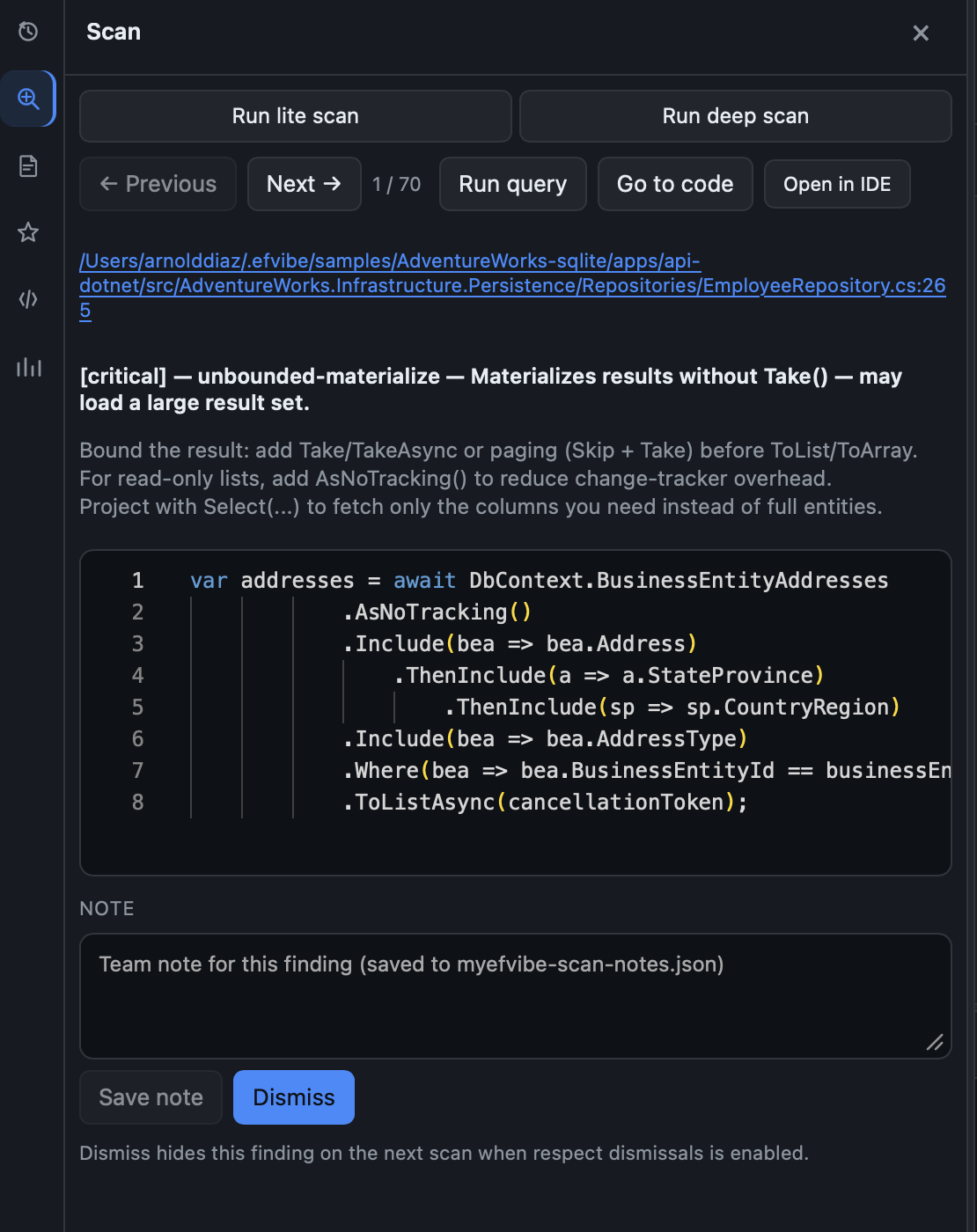
| Scan | Lite/deep LINQ scan with review carousel |
Use #[Benchmark(N)] with Run all (F5) for timed runs; results appear in the Result tab.
Explorer sidebar
- Workspace — New / Open / Save workspace files
- Connections → Model — DbSet tree; Query, Sample, Count, Describe, ER diagram from context menus
- Team — Export/import team packs, sync folder push/pull, cloud sync, git commit for efvibe files
Connection strings are never included in packs or cloud sync.
ER Diagram view
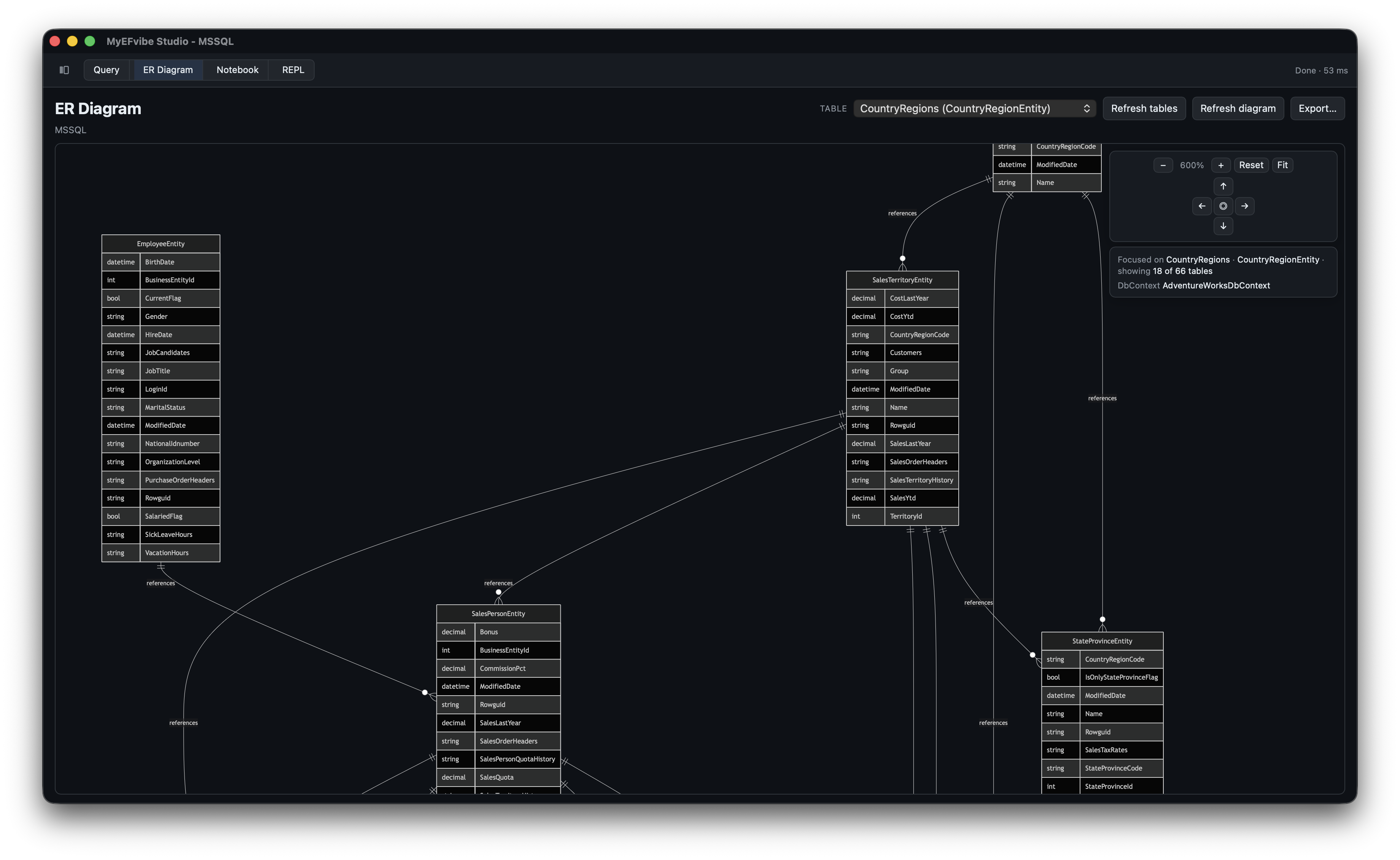
Mermaid entity-relationship diagram for the active connection. Open from the main view switcher, connection menu, or a DbSet. Filter by entity from the dropdown.
Notebook view
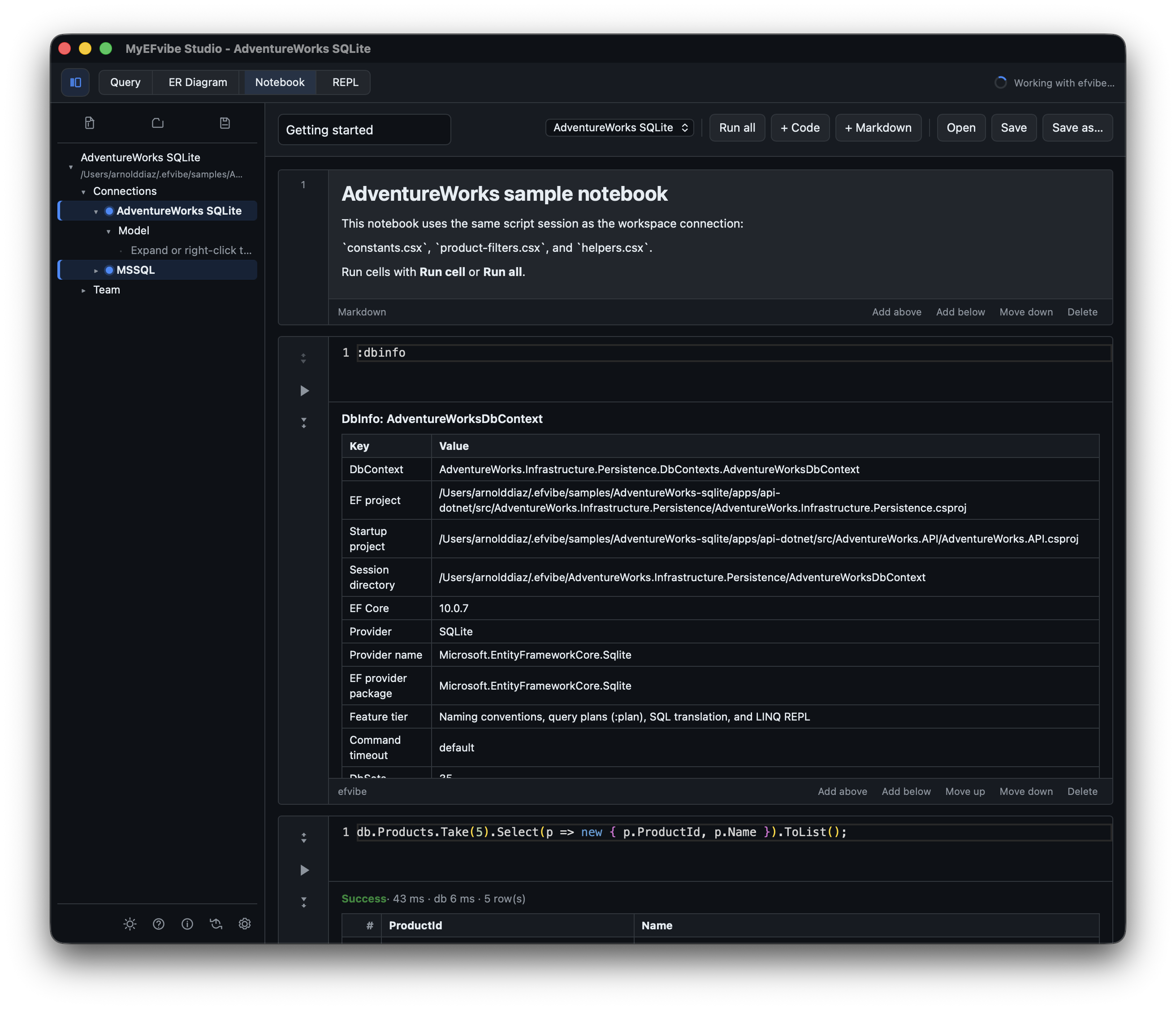
Multi-cell scratchpad saved as .efvibe-notebook.
- Code cells — LINQ, raw SQL, or commands (
:dbinfo,:tables) - Markdown cells — documentation; click to edit
- Run all, run above/below per cell, Add above/below, Save as…
Notebook runs do not appear in query History or Charts (by design).
REPL view
Embedded terminal running efvibe repl for the active connection. Type :help for commands. Use Open external terminal for your system terminal.
Team sharing and sync
- Team packs (
.efvibe-pack) — queries, snippets, folders via Team → Export/Import - Sync folder — push/pull favorites to a shared directory (Settings → Team sync directory)
- Cloud sync — Dropbox, iCloud, OneDrive folder for favorite queries
- Git — commit
.efvibe-workspace,.efvibe-query,.efvibe-notebookfrom Team → Git
Settings
Gear icon in the explorer footer.
| Setting | Purpose |
|---|---|
| efvibe tool path | Override PATH / local tool manifest |
| Default workspace root | Default -w for efvibe sessions |
| Open in IDE | VS Code, Rider, Visual Studio, or custom — for scan go-to-source |
| Team / cloud sync directories | Shared folders for packs and favorites |
| Connection secret vault | Keep connection strings out of workspace files |
| Keybindings | Run all, Run current line, Run plan, explorer toggle, save query |
| Theme | Light or dark |
File formats
| Extension | Purpose |
|---|---|
.efvibe-workspace | Projects, connections, metadata |
.efvibe-query | Saved query (name, connection, expression) |
.efvibe-notebook | Multi-cell notebook |
.efvibe-pack | Team pack (queries, snippets, folders) |
scripts/*.csx | Roslyn script helpers (beside workspace by default) |
Keyboard shortcuts
Defaults (customizable in Settings):
| Shortcut | Action |
|---|---|
F5 | Run all / full script (compare, benchmark) |
Ctrl+Enter | Run current line / notebook cell |
Ctrl+Shift+Enter | Run with plan |
Ctrl+S | Save query tab |
Ctrl+B | Toggle explorer (default) |
Tips and troubleshooting
Prerequisites banner
Install .NET SDK and efvibe; configure tool path in Settings if not on PATH.
Daemon / handshake errors
Refresh or Rebuild the connection. Ensure efvibe is recent enough for Studio features (script session, sqlToLinq). Check connection fields (EF project, startup, context).
Script load file not found
Verify Script search path (default scripts/ beside workspace file). Use relative names in Script loads (constants.csx, not paths under the EF project). Refresh after editing scripts.
Build failures
Fix compile errors in the EF project first. Try Rebuild and confirm framework matches your project (net8.0, net10.0, etc.).
Type or namespace not found
Confirm the type is in an assembly referenced by the EF project. Add Additional usings or use a fully qualified name. Rebuild after project changes.
Stale SQL or results
Refresh restarts the daemon. Script edits require refresh to reload .csx files.
← Studio overview · Full guide on GitHub · efvibe CLI getting started