
VS Code extension
Install from the Visual Studio Marketplace
— extension id yeahbah.vscode-efvibe (v0.6.3).
Works in VS Code and Cursor. Source:
vscode-extension/.
code --install-extension yeahbah.vscode-efvibe
Step-by-step: set up your VS Code workflow
This walkthrough takes you from a clean machine to running LINQ against your real
DbContext, scanning the repo, and reviewing SQL — all inside VS Code.
-
Install prerequisites
You need the .NET SDK and the
efvibeCLI (the extension shells out to it).- .NET SDK — same major version as your EF project (8, 9, or 10).
- efvibe CLI — install from NuGet or build from the my-ef-vibe repo:
dotnet tool install -g efvibe
# or, for latest features:
dotnet build src/MyEfVibe/MyEfVibe.csproj -c Release
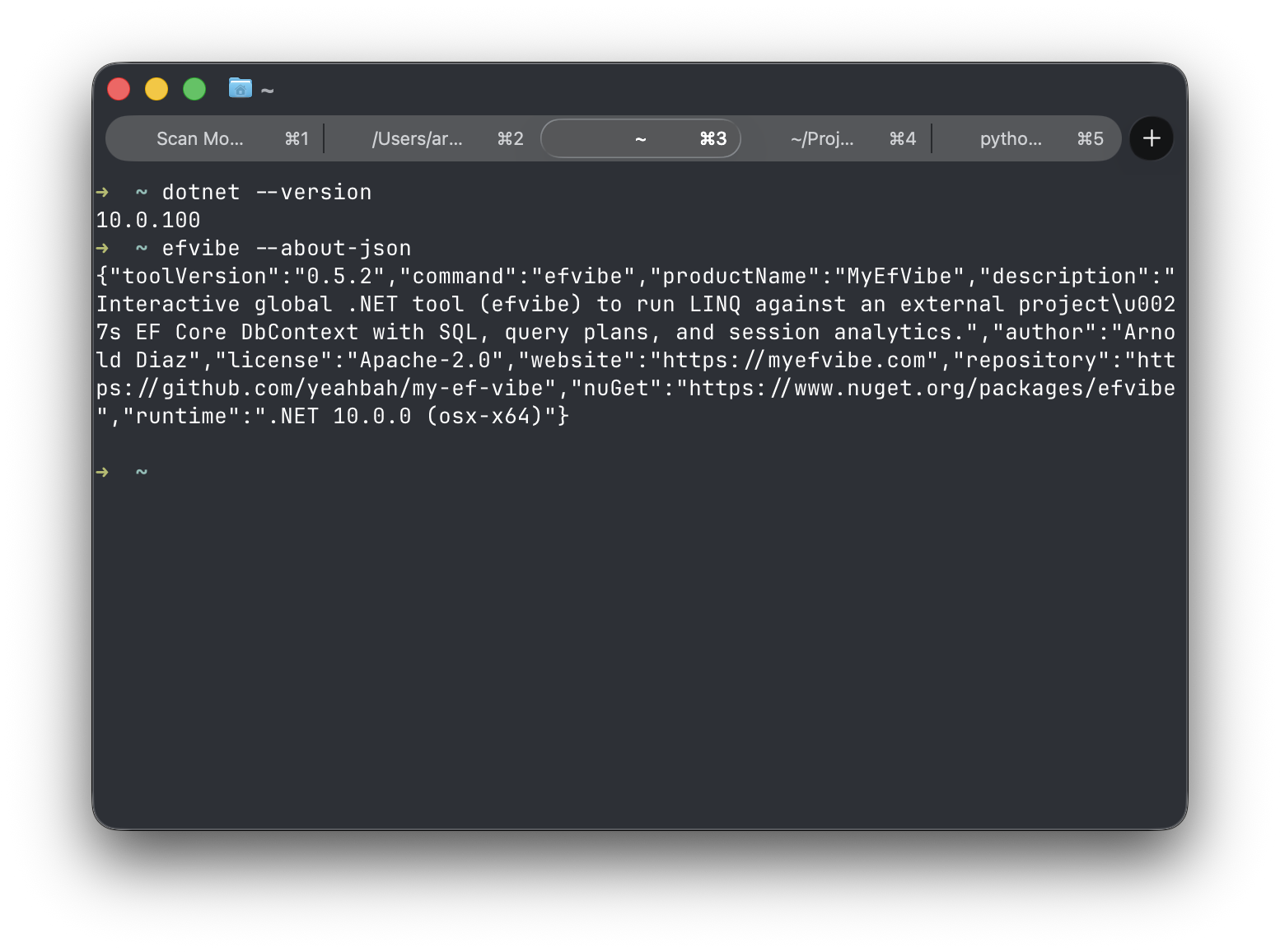
Confirm the CLI runs before installing the extension. -
Install the VS Code extension
Recommended: install from the Visual Studio Marketplace.
In VS Code or Cursor:
- Open Extensions (Cmd+Shift+X / Ctrl+Shift+X).
- Search for efvibe (display name My EF Vibe, publisher yeahbah).
- Click Install and reload the window if prompted.
From a terminal:
code --install-extension yeahbah.vscode-efvibeAlternative: install a
.vsixfrom GitHub Releases via Install from VSIX… (pre-release or offline installs). See INSTALL.md.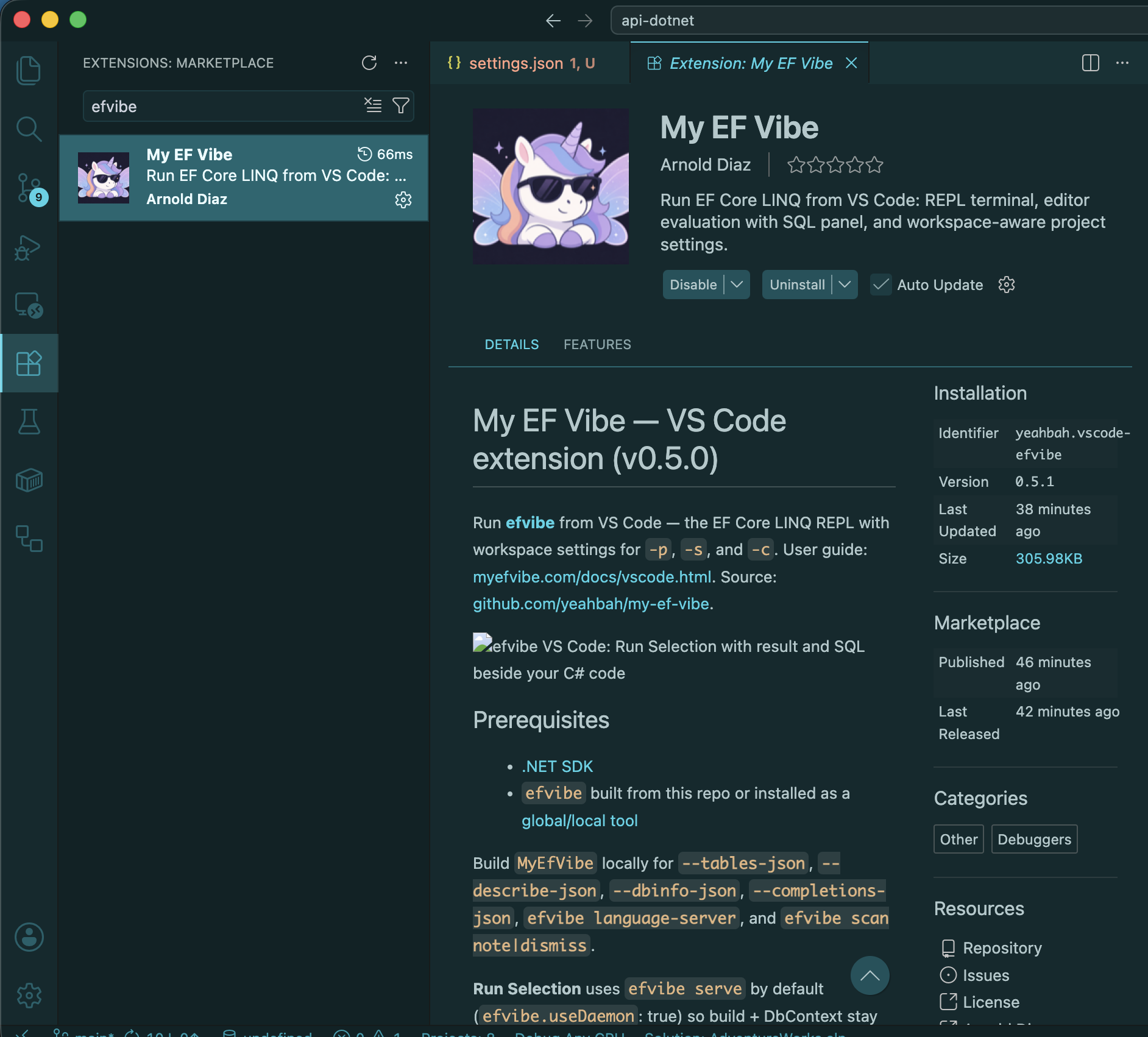
Marketplace install — fastest path for most teams. -
Open your EF solution workspace
Use File → Open Folder on the repository root (the folder that contains your
.slnor the project with yourDbContext). The extension readsefvibe.*settings from.vscode/settings.jsonor user settings.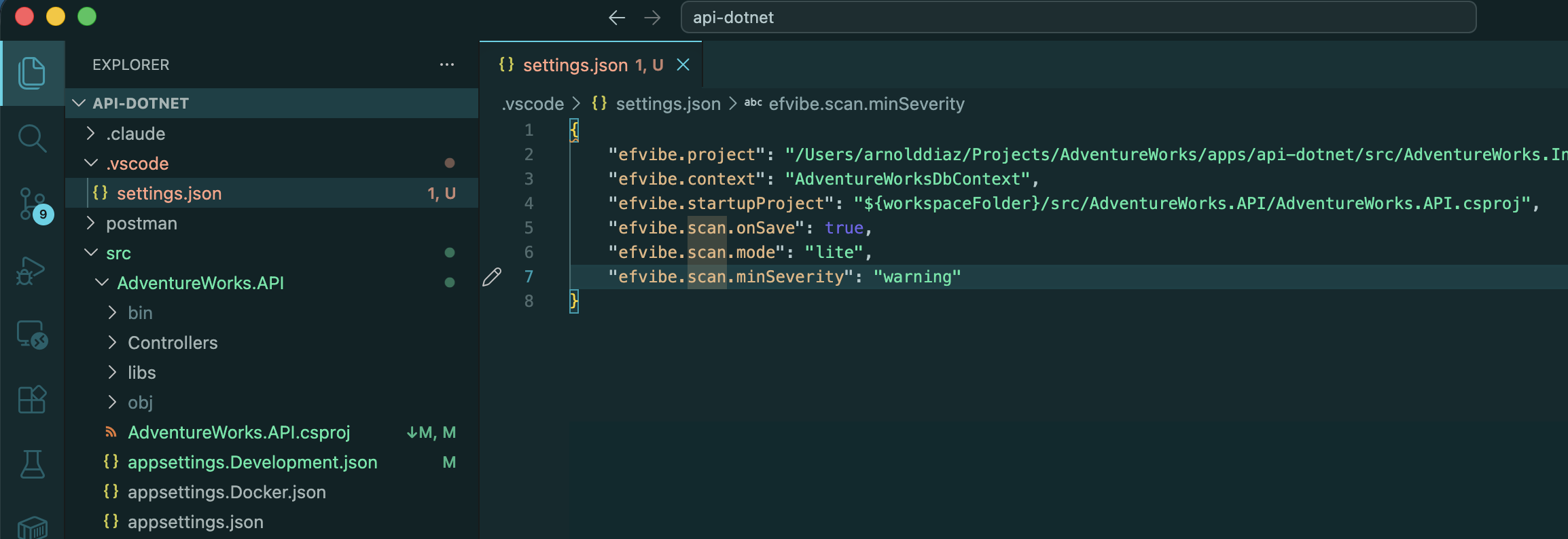
Open the whole solution, not a single file. -
Configure workspace settings
Create or edit
.vscode/settings.json. Pointefvibe.projectat the.csprojthat contains yourDbContext, and setefvibe.contextwhen you have more than one context.{ "efvibe.project": "${workspaceFolder}/src/MyApp.Persistence/MyApp.Persistence.csproj", "efvibe.startupProject": "${workspaceFolder}/src/MyApp.Api/MyApp.Api.csproj", "efvibe.context": "AppDbContext", "efvibe.dotnetFramework": "net8.0", "efvibe.dbLog": true, "efvibe.useDaemon": true, "efvibe.resultDestination": "panel", "efvibe.scan.openReviewOnScan": true }Optional: set
efvibe.toolPathto a localmyefvibebinary if you are developing the CLI from the same repo.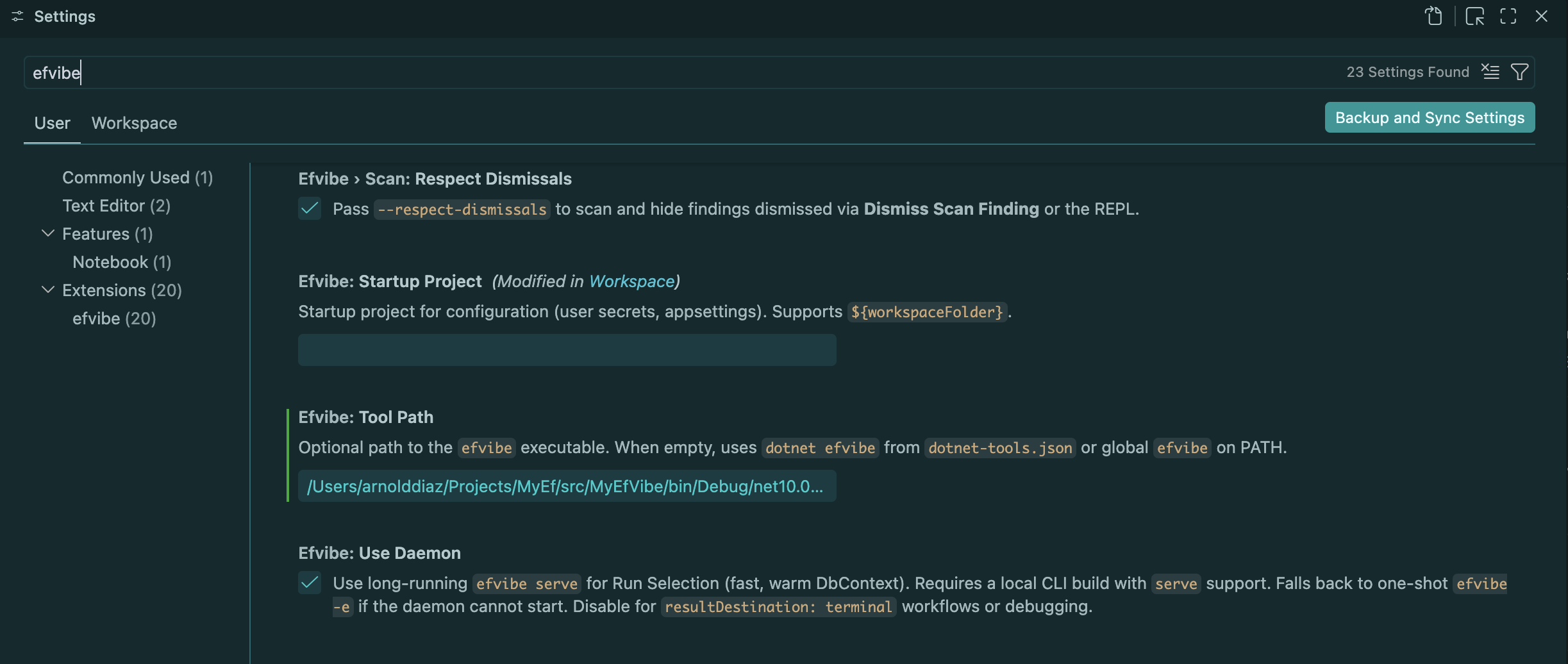
Workspace settings drive every command and the Session sidebar. -
Verify prerequisites
Open the Command Palette (Cmd+Shift+P / Ctrl+Shift+P) and run efvibe: Check Prerequisites. The output channel should report
dotnetandefvibeon PATH with a version string.Then run efvibe: Refresh Status — the status bar should show your DbContext and provider.
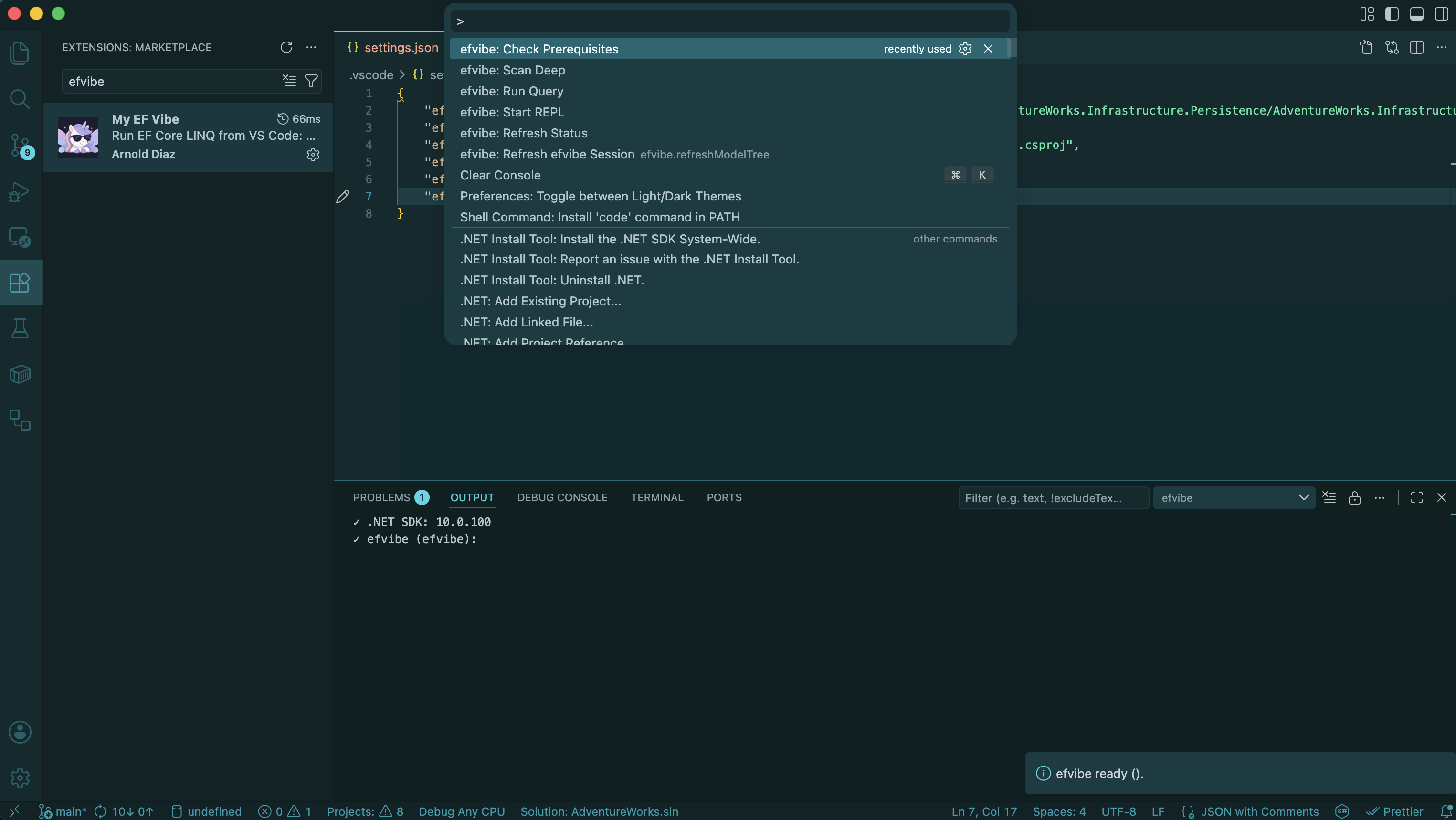
Fix PATH or efvibe.toolPathbefore running queries. -
Use the efvibe Session sidebar
In the Explorer activity bar, open efvibe Session. At the top you will see your DbContext and DbSets (from
efvibe --tables-json). Below that are session folders (scan, per-context exports) once you have run a scan or REPL query.Toolbar actions (left to right):
- Scan Deep — workspace scan with SQL translation
- Run Query — opens the result panel (pick a DbSet if none selected)
- Start REPL — integrated terminal running
efvibe - Refresh — reload model and session files
Right-click a DbSet for Run Query, Describe, Go To Definition, or Run Count.
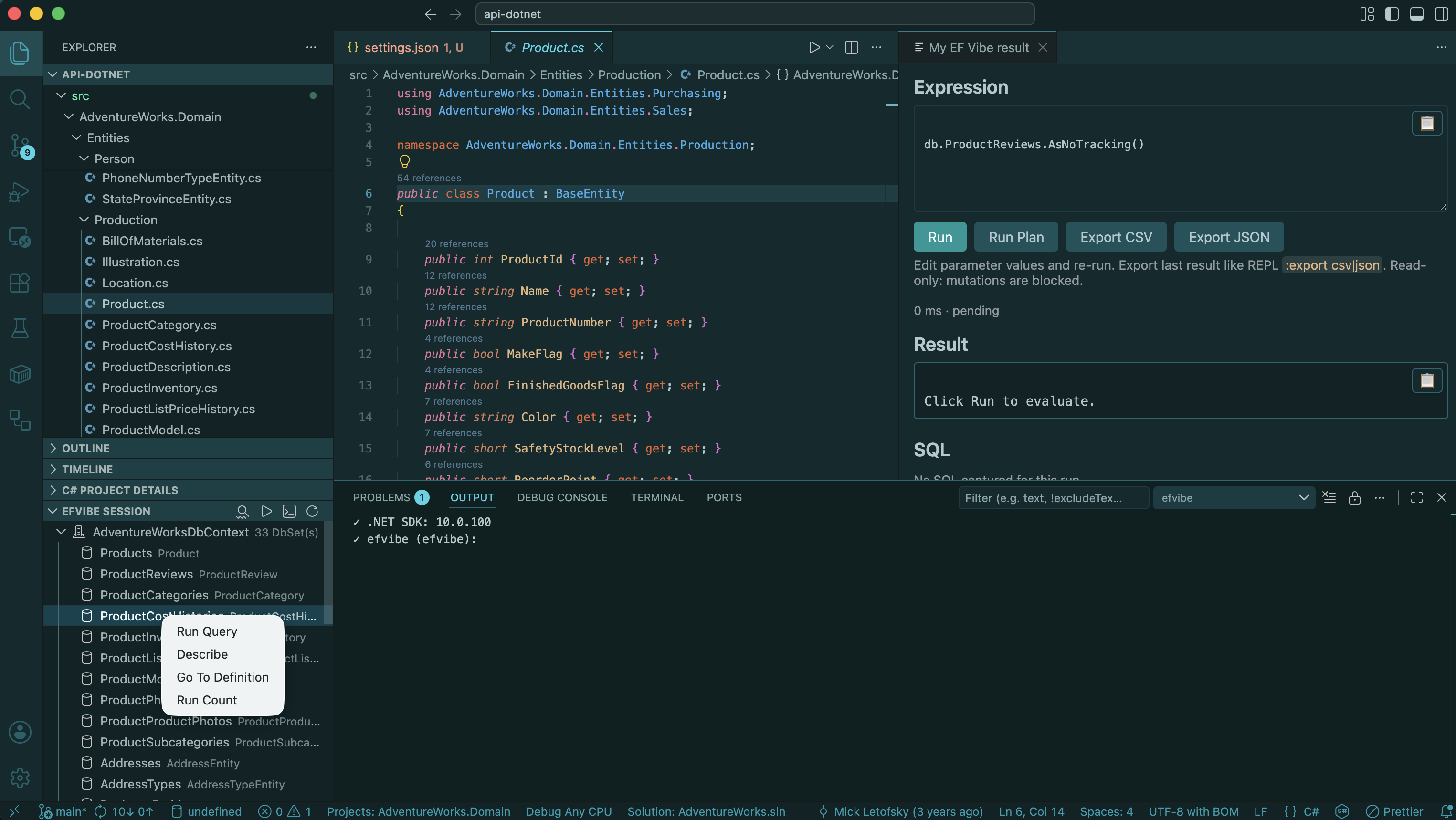
The Session view replaces a separate “EF Model” panel — model and artifacts live together. -
Run a LINQ query from the editor
Typical loop for debugging repository code:
- Open a C# file with a LINQ query (handler or repository).
- Select the full expression (including
await,DbContext, and parameters if needed). - Press Shift+Alt+E or run efvibe: Run Selection.
- Or click Run with efvibe CodeLens on the first line of the query — it runs the whole statement.
With
efvibe.useDaemon(defaulttrue), the first run startsefvibe serveand builds your project; later runs reuse the warmDbContext. Edit stubbed parameter values in the panel and press Run again.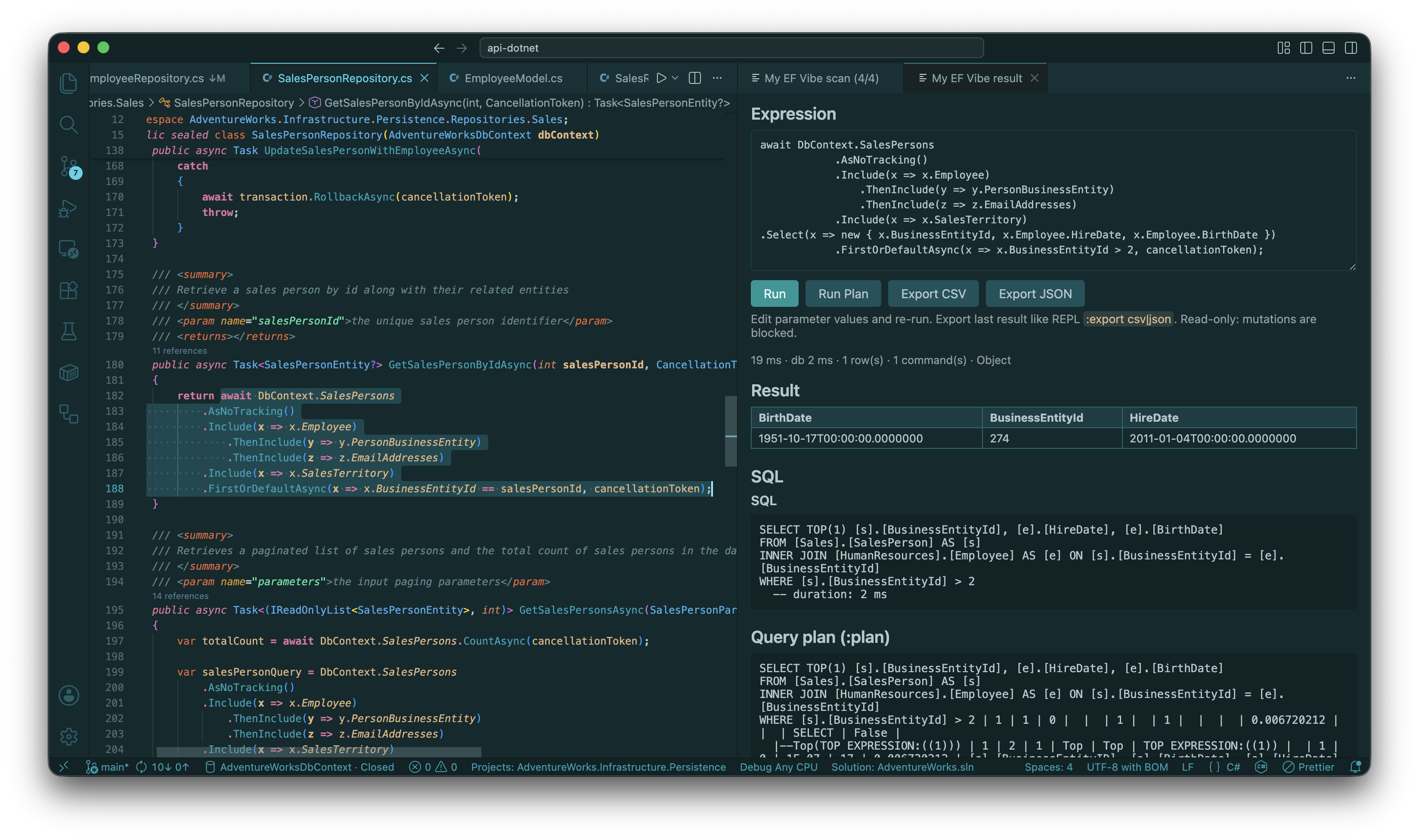
Run Selection — result rows and SQL beside your editor ( vscode1.png).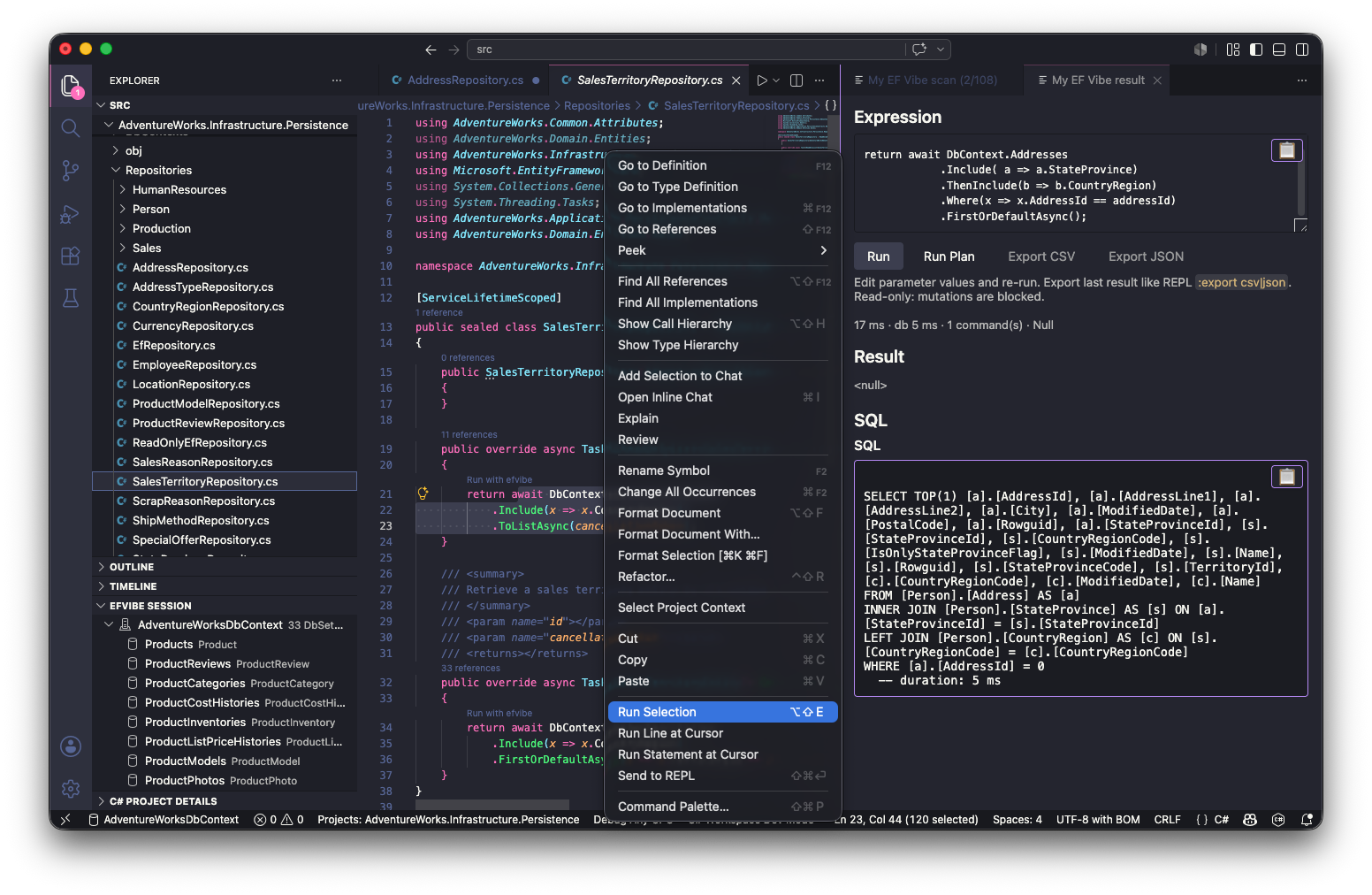
Optional: capture CodeLens on a repository handler for the docs. -
Scan the workspace (deep)
From the Session toolbar, click Scan Deep, or run efvibe: Scan Workspace (Deep) from the Command Palette. Deep scan requires a resolvable
DbContext(setefvibe.contextwhen you have several).The CLI builds your EF project, walks sources, and attempts
ToQueryString()per call site. Progress appears in the notification area; artifacts are written under~/.efvibe/<Project>/<DbContext>/.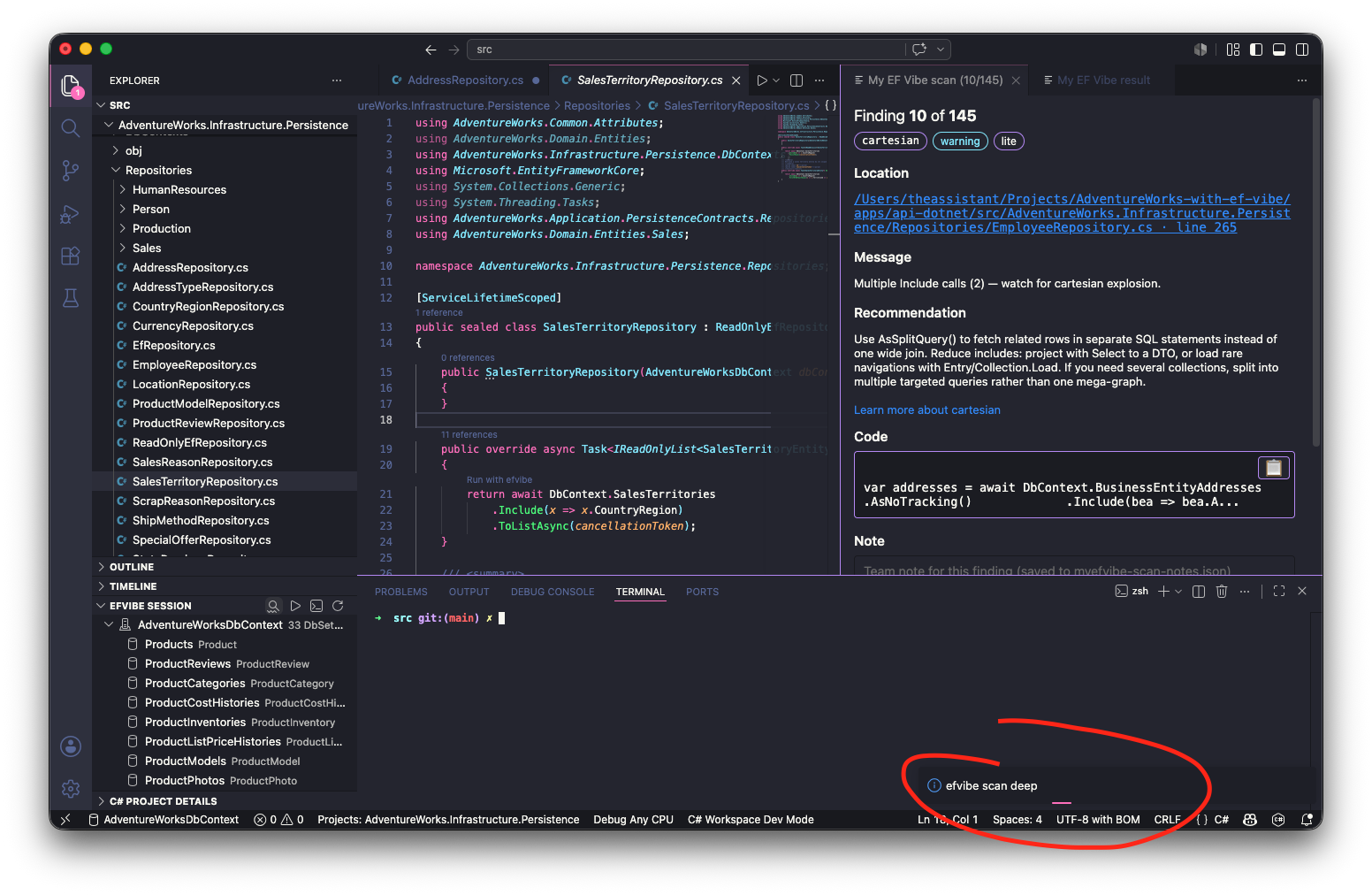
First deep scan may take a minute while the project builds. -
Review findings
When
efvibe.scan.openReviewOnScanistrue(default), Scan Review opens automatically — one finding per page with rule, message, code, translated SQL, and plan (when available).- ← / → — previous and next finding
- Location — jump to file and line
- Note and Dismiss — persisted for the next scan when dismissals are respected
- 📋 Copy on code, SQL, and plan blocks
Re-open anytime with efvibe: Open Scan Review.
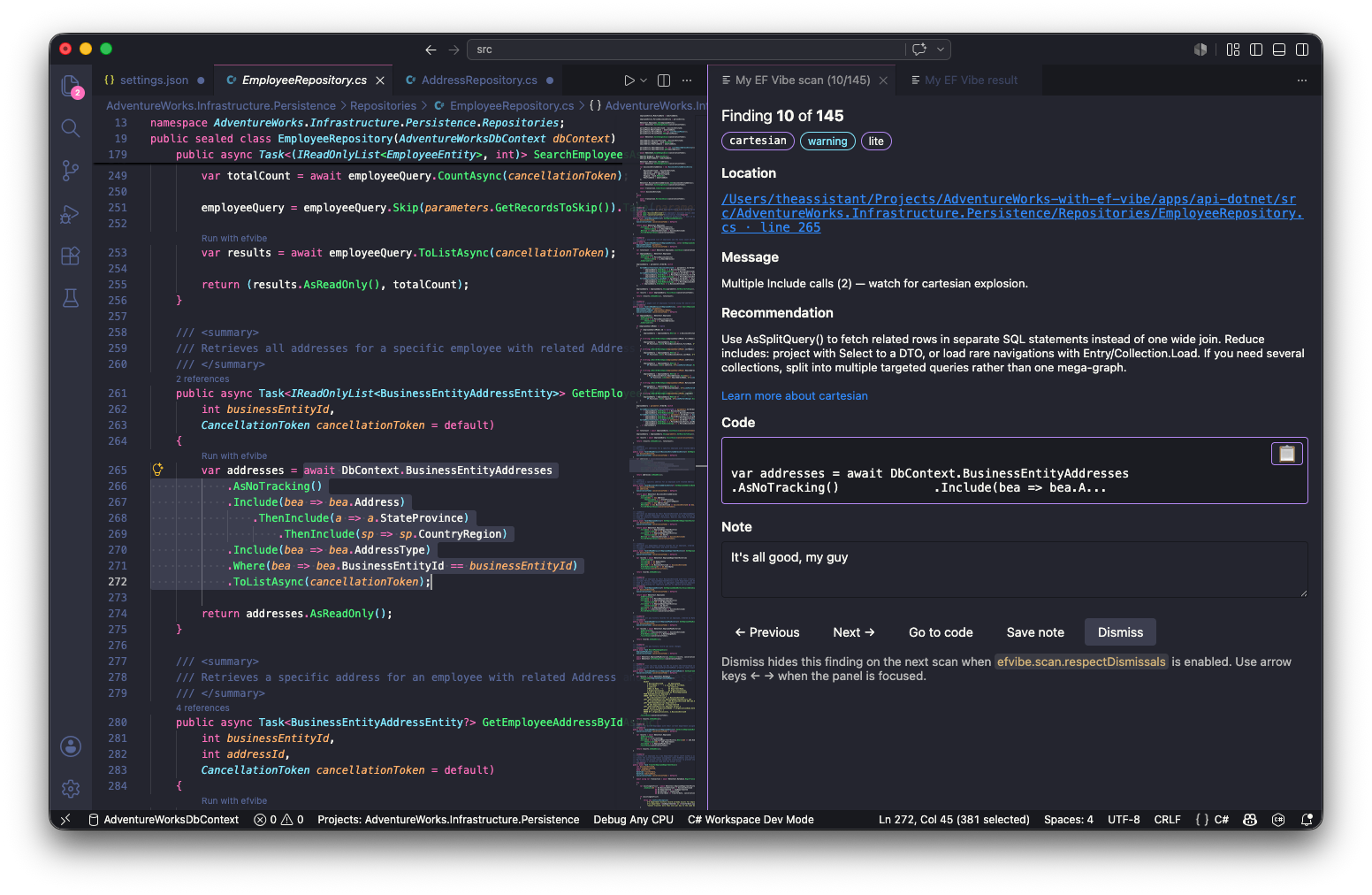
Scan Review shares dismissal/note JSON with the REPL :dismiss/:notecommands. -
Start the REPL (optional)
For exploratory work, click Start REPL in the Session toolbar or run efvibe: Start REPL. The integrated terminal runs
efvibewith your workspace flags.Use efvibe: Send to REPL (Cmd+Shift+Enter / Ctrl+Shift+Enter in C#) to push the current selection as a one-line snippet. The REPL is separate from
efvibe serveused by Run Selection.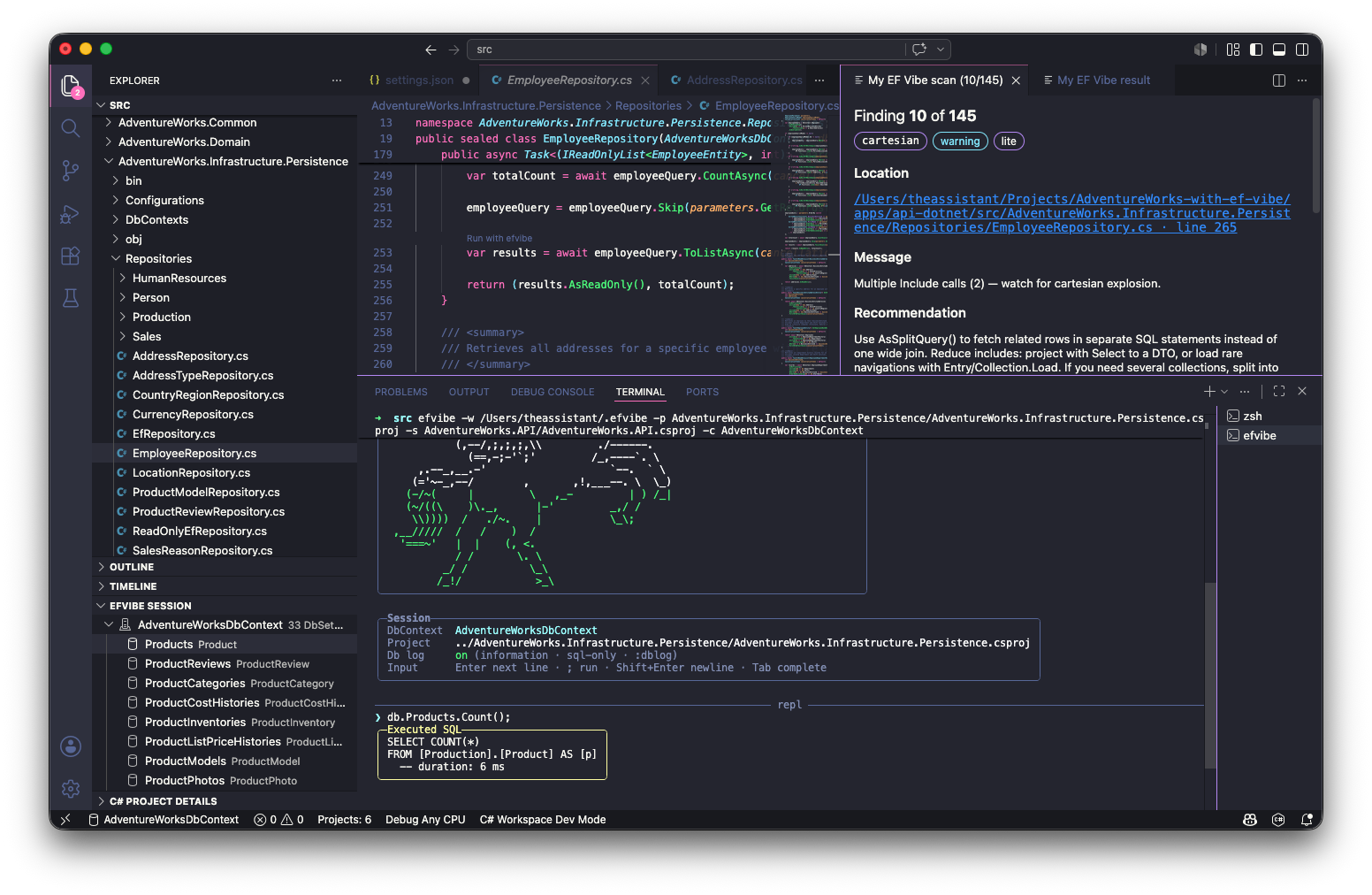
Use the REPL for ad-hoc exploration; use Run Selection when you want the JSON panel and SQL split view.
Install (reference)
Marketplace: yeahbah.vscode-efvibe. VSIX / contributors: INSTALL.md.
# CLI (required by the extension)
dotnet tool install -g efvibe

# VS Code extension (Marketplace)
code --install-extension yeahbah.vscode-efvibe
Fast Run Selection (efvibe serve)
By default, Run Selection talks to a long-running efvibe serve process instead of starting a new CLI for every query. The EF project is built once; the same DbContext stays loaded — much faster for iterative work.
Set efvibe.useDaemon to false to force one-shot efvibe -e per run. Point efvibe.toolPath at a local myefvibe build if the global tool does not yet include serve.
Details: efvibe daemon design doc.
efvibe Session sidebar
Single Explorer view combining the EF model tree and on-disk session artifacts (scan JSON, exports, notes). Use the toolbar for Scan Deep, Run Query, Start REPL, and Refresh.
Result panel
With efvibe.resultDestination set to panel (default):
- Editable expression — change parameter stub values and re-run
- Run — evaluate again (Ctrl/Cmd+Enter in the textarea)
- Run :plan — EXPLAIN / SHOWPLAN for the query (
--with-plan) - Export CSV / :export JSON — save the last result (same idea as REPL
:export) - Read-only guard — blocks SaveChanges, Add/Update/Remove, ExecuteSql, and destructive SQL
- Result table, captured SQL, metrics, and warnings in a split tab beside your editor
- 📋 Copy — floating copy on SQL, query plan, and scalar result blocks
Scan Review (carousel)
efvibe: Scan Workspace runs efvibe scan lite; Scan Deep runs efvibe scan deep with SQL translation. Both can open the review tab:
- Previous / Next — browse findings (arrow keys when the panel is focused)
- Location — click the path to jump to file and line
- Dismiss and Note — same JSON stores as REPL
:dismiss/:note - 📋 Copy on code, translated SQL, and query plan blocks
- Optional
efvibe.scan.problemsPanelfor Problems squiggles (defaultfalse— avoids C# LSP noise)
Commands
- efvibe: Run Selection — Shift+Alt+E in C#
- efvibe: Run Statement at Cursor — full statement (matches CodeLens)
- efvibe: Scan Workspace / Scan Workspace (Deep)
- efvibe: Open Scan Review
- efvibe: Start REPL · Send to REPL
- efvibe: Pick Entity · Show DbInfo · Show Query Plan
- efvibe: Generate REPL Task · Check Prerequisites · Refresh Status
Settings
{
  "efvibe.project": "${workspaceFolder}/src/MyApp.Persistence/MyApp.Persistence.csproj",
  "efvibe.startupProject": "${workspaceFolder}/src/MyApp.Api/MyApp.Api.csproj",
  "efvibe.context": "AppDbContext",
  "efvibe.dbLog": true,
  "efvibe.useDaemon": true,
  "efvibe.resultDestination": "panel",
  "efvibe.toolPath": "",
  "efvibe.scan.mode": "lite",
  "efvibe.scan.openReviewOnScan": true,
  "efvibe.scan.problemsPanel": false
}| Setting | Description |
|---|---|
efvibe.useDaemon | When true (default), Run Selection uses efvibe serve |
efvibe.resultDestination | panel, output, or terminal |
efvibe.scan.mode | Default for Scan Workspace — lite or deep |
efvibe.scan.openReviewOnScan | Open Scan Review after scan (default true) |
efvibe.toolPath | Path to myefvibe / efvibe for latest CLI features |
Repository snippets
Select handler LINQ (with await, DbContext, parameters) and run — the CLI adapts the snippet before evaluation. Edit stubbed values in the panel (e.g. replace Guid.Empty with a real id) and re-run. See repository snippets for limits.